This n8n fundamentals guide starts with the part most tutorials skip: the data. If n8n still feels confusing, the problem is probably not the canvas. It is the data moving across it. Once you can look at a node and predict what goes in, what comes out, and how many items continue, n8n becomes much less mysterious.
This guide teaches that mental model with one small workflow you can build in about 30 minutes. No API key. No AI model. No template doing hidden work. Just four nodes, typed sample data, one expression, and one decision. It is deliberately ordinary because ordinary workflows are where you learn the habits that later make AI agents reliable.
← Return to the complete n8n AI agents guide
What you will be able to do after this guide
- Explain a workflow, trigger, node, connection, execution, and item in plain English.
- Create typed data instead of treating every value as text.
- Use an expression and check its resolved value before running the next node.
- Route data with an If node and understand why an item took a branch.
- Debug a failed workflow by reading execution data instead of guessing.
The n8n mental model that makes everything easier
An n8n workflow is a series of small operations. A trigger starts an execution and produces one or more items. A node receives those items, reads or changes their fields, and returns items to the next node. A connection only decides where those returned items travel.
Think of an item as one record. A customer, an email, an order, or a webhook event may each be one item. Inside the editor, its fields are normally shown as JSON. You do not need to become a programmer, but you do need to respect the field names, nesting, and data types.
{
  "customerName": "Asha",
  "plan": "Pro",
  "monthlySpend": 120,
  "isActive": true
}
That record contains two strings, one number, and one Boolean. The difference is not cosmetic. The number 120 can be multiplied and compared numerically. The string "120" is text. The Boolean true is not the same as the string "true". Many apparently random n8n errors are simply wrong types arriving at the next node.
| Term | What it means | Example |
|---|---|---|
| Workflow | The complete automation | Qualify a lead and create a follow-up task |
| Trigger | The node that starts an execution | Webhook, schedule, form, chat, app event |
| Node | One operation inside the workflow | Edit Fields, If, HTTP Request, Gmail |
| Item | One record travelling between nodes | One customer JSON object |
| Expression | A dynamic value calculated from workflow data | {{ $json.monthlySpend * 12 }} |
| Execution | One run of the workflow | A manual test or a production webhook call |
Build this four-node practice workflow
Open n8n, click Create Workflow, and name it Customer value practice. Add the nodes in this order:
- Manual Trigger — starts a test only when you click Execute Workflow.
- Edit Fields — creates a sample customer. Rename it Create Sample Customer.
- Edit Fields — calculates annual spend. Rename it Calculate Annual Spend.
- If — routes higher-value customers. Rename it Is High Value?.
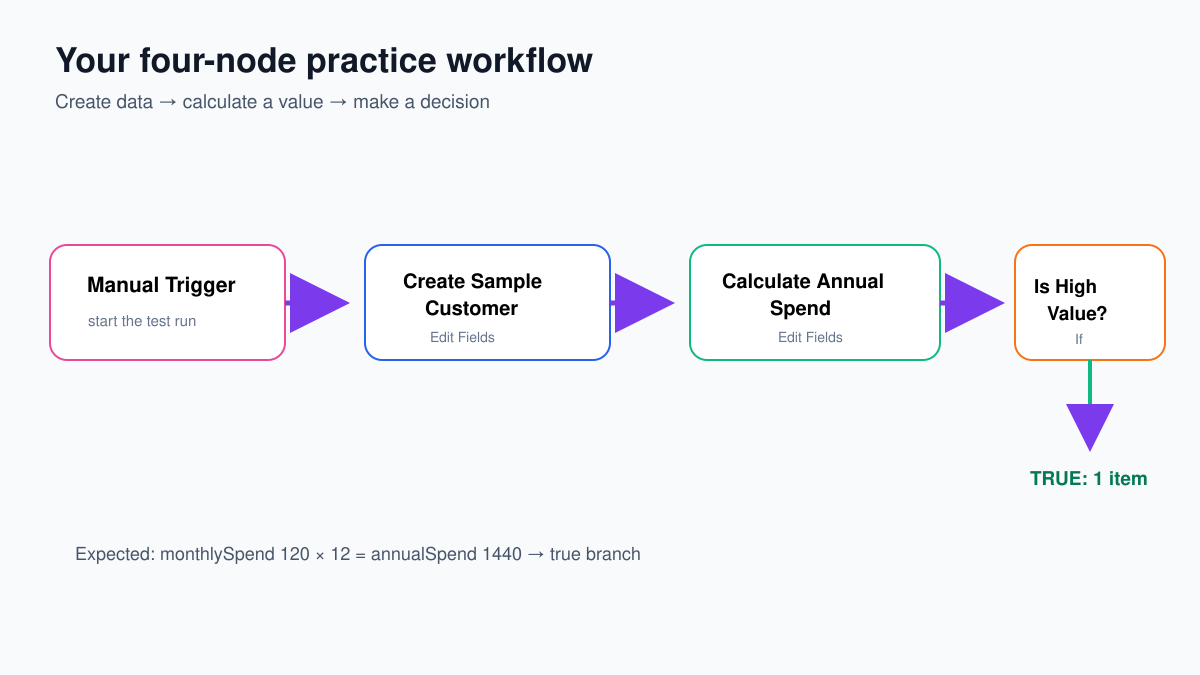
Click Test workflow once. The Manual Trigger should show a green check. It may return a nearly empty item; that is fine. We will create predictable data in the next node.
Step 1: create correctly typed sample data
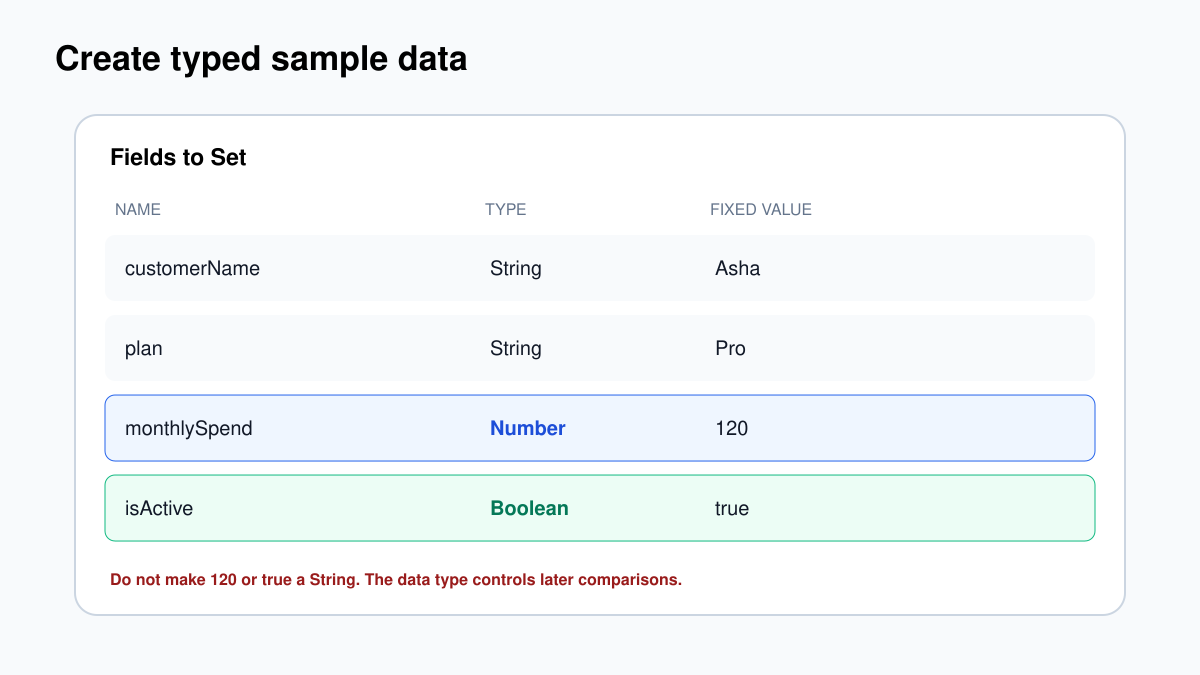
Open Create Sample Customer. Keep Mode as Manual Mapping. Under Fields to Set, add these four fields. Choose the type before entering the value.
| Name | Type | Value |
|---|---|---|
customerName |
String | Asha |
plan |
String | Pro |
monthlySpend |
Number | 120 |
isActive |
Boolean | true |
Leave Include Other Input Fields off for this exercise. Click Execute step. In the output panel, switch between Table and JSON view. Confirm that monthlySpend has no quotation marks and isActive is a real Boolean.
Step 2: calculate annual spend with an expression
Open Calculate Annual Spend. Add a field named annualSpend, choose Number, then change the value from Fixed to Expression. Enter:
{{ $json.monthlySpend * 12 }}n8n should show a resolved preview of 1440. That preview is your first debugging check. If it shows undefined, red text, or an unexpected value, do not continue. Open the input panel and confirm the exact field name and type. Field names are case-sensitive: monthlySpend and monthlyspend are different.
Turn on Include Other Input Fields, otherwise the node may return only the new field. Execute the step. The output should contain the original four fields plus annualSpend: 1440.
Step 3: route the item with an If node
Open Is High Value?. Add a Number condition. Drag annualSpend from the input panel into Value 1, or enter this expression:
{{ $json.annualSpend }}Choose is greater than or equal to and enter 1000 as Value 2. Execute the node. You should see 1 item on the true output and 0 items on the false output.
Now go back to Create Sample Customer, change monthlySpend to 50, and run the workflow again. Annual spend becomes 600, so the item should move through the false output. This second test matters. A branch is not tested merely because its node turned green once.
How items behave when there is more than one record
Most real triggers return more than one item. A Google Sheets node might return 20 rows; an API might return 100 records. By default, the next node processes each input item. If 20 items enter Edit Fields, you should normally expect 20 items to leave.
This is where beginners accidentally lose data. A node configured to return only one combined object may collapse many records. A Merge node may pair items by position when you expected matching by ID. A Code node may return the wrong structure. After any transformation, check both the fields and the item count shown above the output.
Keep a stable identifier—such as customerId, orderId, or eventId—through the workflow. Names and email addresses can change; an ID lets you prove which input produced which output.
Expressions: use the shortest reliable reference
$json refers to the current input item. It is usually the cleanest choice when the field comes directly from the previous node. You can also reference a named node, but that creates a stronger dependency on that node and on item matching.
| Expression | Use |
|---|---|
{{ $json.email }} |
Read email from the current item |
{{ $json.customer.name }} |
Read a nested field |
{{ $json.email?.toLowerCase() }} |
Normalize a value when it exists |
{{ $json.monthlySpend * 12 }} |
Calculate a number |
{{ $('Create Sample Customer').item.json.plan }} |
Read a field from a named earlier node |
Do not write a long expression when two ordinary nodes would be clearer. If an expression is difficult to explain, split validation and calculation into separate Edit Fields or If nodes. The next person maintaining the workflow—including you three months later—will thank you.
For a slower walkthrough with more expression examples, use the dedicated n8n workflow, nodes, and expressions tutorial.
Test mode and production mode are not the same thing
A manual execution runs in the editor with the data you provide. A production execution begins when an active trigger receives a real event. Webhook nodes even provide separate test and production URLs. Something working in the editor does not prove that the workflow is active, that the production URL is correct, or that the connected account has permission.
For each production workflow, test four layers separately:
- Trigger: did a real event start an execution?
- Data contract: are required fields present and correctly typed?
- Business decision: did the right branch run?
- Side effect: was the correct external record created or changed only once?
If you are building an endpoint, follow the n8n webhook tutorial. It shows the test URL, production URL, response configuration, curl request, expected output, authentication, and duplicate-event protection.
A debugging routine that works
When a workflow fails, resist the urge to edit three nodes at once. Open the execution and start at the first unexpected result.
- Did the node execute at all?
- How many items arrived?
- What is the exact JSON input?
- What value does each expression resolve to?
- What JSON and item count left the node?
- Did a retry or second trigger create a duplicate side effect?
| Symptom | Likely cause | First check |
|---|---|---|
| Expression shows undefined | Wrong path, spelling, or upstream branch | Copy the path from the actual input JSON |
| Number comparison looks wrong | The value is a String | Inspect the type, not only the displayed characters |
| Only one record continues | Items were aggregated or paired incorrectly | Compare input and output item counts |
| Webhook works only in editor | Test URL used or workflow not active | Check production URL and active status |
| External action happens twice | Trigger retry or duplicate event | Log an event ID before the write node |
| Credentials work for you, not production | Wrong credential owner or permissions | Test the exact credential selected by the node |
Pinning data is useful while building because it keeps a known sample available. Unpin it before the final production test. Otherwise you can believe the live trigger is working while downstream nodes are still reading the pinned sample.
What to learn next
- Workflows, nodes, items, and expressions — the detailed beginner lesson.
- Build and test a safe webhook — receive real data and return a controlled response.
- Store credentials and API keys safely — connect services without exposing secrets.
- Build your first n8n AI agent — add a model and a Calculator tool after the workflow basics are clear.
- Audit and customize n8n templates — understand every node before trusting a downloaded workflow.
Do not rush past this layer. An AI agent is still a workflow underneath. If you can inspect items, validate types, test both branches, and find the first wrong output, you already have the skills that prevent most expensive automation mistakes.