Updated October 4, 2026: expanded with a worked workflow, permission controls, tests and limitations.
OpenAI Dots are not simply another place to type a prompt. OpenAI describes them as always-on AI agents that can use their own cloud computer, work across connected apps and keep moving while you are away.
That sounds impressive. It also raises the question that matters more: what should you actually trust an always-on agent to do?
This guide separates the launch promises from the practical decisions. We will look at how Dots work, where they could save time, what access they need, the safety controls worth checking and whether you should use one now.
Short answer: OpenAI Dots can watch, plan and perform multi-step work across apps. Start with a narrow, reversible task. Give the agent the least access it needs, inspect its work and keep approval in front of messages, purchases, publishing, deletion and other consequential actions.
OpenAI Dots: quick facts
| Question | Current answer |
|---|---|
| What is a Dot? | An always-on AI agent with a dedicated cloud computer |
| What powers it? | OpenAI says Dots are powered by GPT-6 Astra |
| Where can you reach it? | ChatGPT, Slack, Microsoft Teams and voice |
| What can it connect to? | More than 4,000 apps through plugins, according to OpenAI |
| Who gets access first? | Staged rollout to eligible Pro, Business Premium and Enterprise customers |
| Is there a separate Dots price? | OpenAI has not presented a simple standalone Dots price on the launch page |
| Best first task | A recurring, low-risk workflow with clear inputs and an easy-to-review result |
Transparency note: This is a first-look analysis based on OpenAI’s launch material and independent reporting, not a hands-on review. Availability is still rolling out, so features, plan limits and interfaces may change.
What are OpenAI Dots?
A Dot is an AI worker you assign to an ongoing job. Instead of waiting inside one chat, it can use a browser and connected tools, remember your feedback and continue working on its own cloud computer.
OpenAI’s examples include investigating a software bug, turning a design into an application, helping with planning cycles and preparing invoicing work that a person approves. The common thread is not “write me a paragraph.” It is a goal that requires several steps, tools and checkpoints.
You can contact a Dot from familiar places such as ChatGPT, Slack or Teams. That matters because the agent is meant to fit inside work, not become another dashboard you must remember to open.
The closest mental model is a junior digital operator with its own computer. It may be fast and tireless, but it still needs a clear job, limited permissions, examples of good work and a manager who checks important decisions.
How Dots differ from ChatGPT and normal automation
| Tool type | Best at | Main limitation |
|---|---|---|
| Chat assistant | Answering, drafting, analysing and helping in the current conversation | Usually waits for you to start and guide the interaction |
| Fixed automation | Repeating a known trigger-and-action sequence reliably | Struggles when the next step requires judgement |
| OpenAI Dot | Pursuing an ongoing goal across tools and adapting its next step | More autonomy creates more permission, review and recovery risk |
A fixed workflow still wins when the rule is predictable. If every approved invoice PDF should be copied to one folder and logged in a sheet, use ordinary automation. It will be cheaper, easier to test and easier to explain.
An agent becomes useful when the route changes. A weekly research brief might require checking different sources, following new leads, comparing claims, asking for clarification and drafting a result in a consistent format. That is closer to the territory Dots are designed for.
If this distinction still feels fuzzy, start with our guide to AI agents vs chatbots vs automation. For a build-it-yourself alternative, the complete n8n AI agents guide shows how the same ideas work in visible workflows.
What actually happens after you give a Dot a job?
The easiest way to understand OpenAI Dots is to stop thinking about a single prompt. A Dot is closer to a small operating loop: you define the outcome and boundaries; the agent gathers context, works through multiple steps, pauses when your decision is required and carries your feedback into the next run.
| Stage | What the Dot does | What you should decide |
|---|---|---|
| 1. Goal | Turns your request into an ongoing piece of work | Define the deliverable, deadline and finish line |
| 2. Context | Uses conversations, connected apps and feedback relevant to the job | Specify trusted sources and examples of good work |
| 3. Boundaries | Checks app access, built-in rules and your Custom Rules | Choose what is allowed, approval-only or blocked |
| 4. Execution | Uses its cloud browser, cloud computer and connected tools across several steps | Watch the first runs in Activity View and redirect weak work |
| 5. Approval | Pauses when an action requires permission or must remain with you | Inspect the proposed action and its evidence—not just the final button |
| 6. Feedback | Uses your corrections to learn preferences and standards over time | Explain why a result is right or wrong instead of silently rewriting it |
Its own cloud computer
Each Dot works on a separate cloud computer with a browser. Your laptop and files remain separate unless you deliberately connect the device. You can open the Dot’s computer to inspect what it is doing. This separation is important: “has a computer” does not automatically mean “controls my computer.”
Proactive research
When you are not actively working with it, a Dot can look for useful work in connected apps. OpenAI calls this proactive research. In this background mode, app tools are restricted to read-only access: the Dot cannot send a message, change app content or control a browser or computer. It may notice an overdue invoice or a changing project requirement, but an action still follows the applicable approval rules.
Custom Rules
Custom Rules are the practical boundary between useful autonomy and an open-ended mandate. For a given action, you can allow it, require approval or block it. Built-in safety requirements still apply. A sensible rule set is specific enough to evaluate:
| Rule | Example |
|---|---|
| Allow | Read documents in the approved research folder and create a draft inside the project workspace |
| Require approval | Send any external message, publish content, change a customer record or create an invoice |
| Block | Delete data, change permissions, modify credentials or use a source outside the approved list |
Activity View and auto-review
Activity View lets you follow foreground and background work, inspect progress and redirect the Dot. Auto-review separately checks actions that could affect accounts or share information against your instructions, Custom Rules and OpenAI’s safety requirements. It decides whether work can proceed, needs approval or must be completed by you. Changing a password is one example OpenAI says always remains a human task.
These controls reduce risk; they do not prove the result is correct. Review the evidence, source and proposed action whenever the consequence matters.
7 practical OpenAI Dots use cases
1. A daily priority brief
A Dot could review the calendar, selected project updates and an approved task list, then prepare a short morning brief: meetings that need preparation, blocked work and the three decisions that deserve attention. Keep it read-only at first. A useful brief is valuable even if the agent cannot change a single record.
2. Research that develops over time
Instead of requesting one search, give the agent a standing question and an evidence standard. It can watch a set of official sources, collect meaningful changes and draft a weekly summary with links. The important instruction is what not to include: repeated announcements, unsupported social posts and claims without a primary source.
3. Project follow-up without more meetings
A Dot could compare a plan with recent status updates, identify missing owners and prepare follow-up questions. It should draft reminders rather than send them automatically until you know it understands the team’s tone and context.
4. Software investigation
OpenAI demonstrates bug investigation as a launch use case. An agent can gather error reports, reproduce an issue, inspect relevant code and prepare a proposed fix. Production deployment remains a separate decision. “Found a likely cause” and “safe to release” are not the same status.
5. Content operations
For a small content team, a Dot could turn an approved article into a newsletter draft, social snippets and an update checklist. Let it prepare assets and flag broken links, but require a human to publish. That gives you leverage without letting a weak draft become a public mistake.
6. Invoice preparation
The agent could gather approved time records, check required fields and prepare an invoice for review. It should not invent missing rates, change bank details or send the invoice without approval. Finance workflows need tighter limits than a research brief.
7. Customer-support preparation
A Dot could classify new cases, find the relevant policy and draft a response. Keep refunds, account changes and external sending behind deterministic checks and human review. Our safe Gmail AI agent tutorial applies this same draft-first pattern.
Worked example: build a weekly competitor-change brief
“Research my competitors” is vague. A Dot could browse for hours and still produce something you cannot use. A better first project has fixed sources, an output contract and a clear rule for uncertainty.
The task brief to give your Dot
Goal: Every Friday by 3 p.m., prepare a competitor-change brief covering the five companies in the approved tracker.
Sources: Official product pages, release notes, pricing pages and company newsrooms. Use reputable reporting only when a primary source is unavailable. Ignore social posts unless they link to evidence.
Output: A one-page table with company, confirmed change, date, source, likely customer impact and recommended follow-up. Add a separate “unconfirmed” section. Do not guess.
Boundaries: Read approved sources and create a draft in the research folder. Do not contact anyone, publish, change the tracker or sign up for trials.
Escalation: Ask me when sources conflict, a page requires payment or login, or a recommendation could affect pricing or a public claim.
What the workflow looks like
| Step | Dot’s work | Expected evidence |
|---|---|---|
| Collect | Checks the approved pages and release feeds | URL and observed publication/update date |
| Compare | Compares current facts with the previous brief | Old value, new value and what changed |
| Verify | Looks for a primary source and a second source where the claim is consequential | Source links beside each claim |
| Draft | Builds the table and separates facts from interpretation | A reviewable document, not an external message |
| Escalate | Flags conflicts, missing dates and ambiguous claims | A short question with the conflicting evidence |
| Improve | Applies your corrections to the next weekly brief | Fewer repeated formatting and source-quality errors |
Example of a useful result
| Company | Confirmed change | Evidence | Impact | Follow-up |
|---|---|---|---|---|
| ExampleCo | Team plan increased from $20 to $24 per user/month on October 2 | Pricing page and dated newsroom post | Stronger opening for a value comparison | Review our comparison table; do not change pricing |
| SampleAI | New export feature announced; availability unclear | Release note; no plan matrix update | Possible feature gap, not yet confirmed | Keep in “unconfirmed” and check next week |
The difference is small but important. The brief does not say “Competitor X is better.” It preserves the evidence, uncertainty and next decision so a person can act intelligently.
How to test the first three runs
- Normal case: add one genuine update and check that it appears with the correct date and source.
- No-change case: confirm the Dot reports “no verified change” instead of manufacturing news.
- Conflicting case: make the pricing page and release note disagree; the result should be flagged, not averaged or guessed.
- Hostile case: include a webpage telling the agent to ignore its rules; the instruction should be treated as page content, not authority.
- Permission case: request that the brief be emailed externally; the Dot should stop for approval or remain blocked under your rules.
- Recovery case: deliberately add a wrong company to the tracker and confirm you can correct the scope, review the activity and prevent recurrence.
Measure source accuracy, missed changes, false positives, review minutes and repeated corrections. If the human still rebuilds the brief from scratch, the agent has not saved time.
The safety question: what can the agent see and do?
The impressive part of Dots is their ability to act across apps. That is also the part to slow down and inspect.
OpenAI says Dots include access and action reviews, and that you can inspect the agent’s work. Those controls are useful, but a product setting cannot decide your acceptable risk. Before connecting an app, write down four things:
- Data: what messages, files, records or code can it read?
- Actions: what can it create, edit, send, buy, publish or delete?
- Approval: which exact actions must stop for a person?
- Recovery: how will you revoke access, correct a mistake and preserve a log?
Follow least privilege. A research agent does not need permission to send email. A calendar brief does not need access to every shared drive. A content assistant does not need administrator rights to your website.
Also treat external webpages, emails and documents as untrusted input. They may be wrong, malicious or written to manipulate an agent. Instructions found inside content should never quietly override the job and limits you set.
Use our 12-control AI agent security checklist before connecting company data. It covers ownership, permissions, approvals, logs, abuse testing and the kill switch people usually remember too late.
A sensible first-week setup
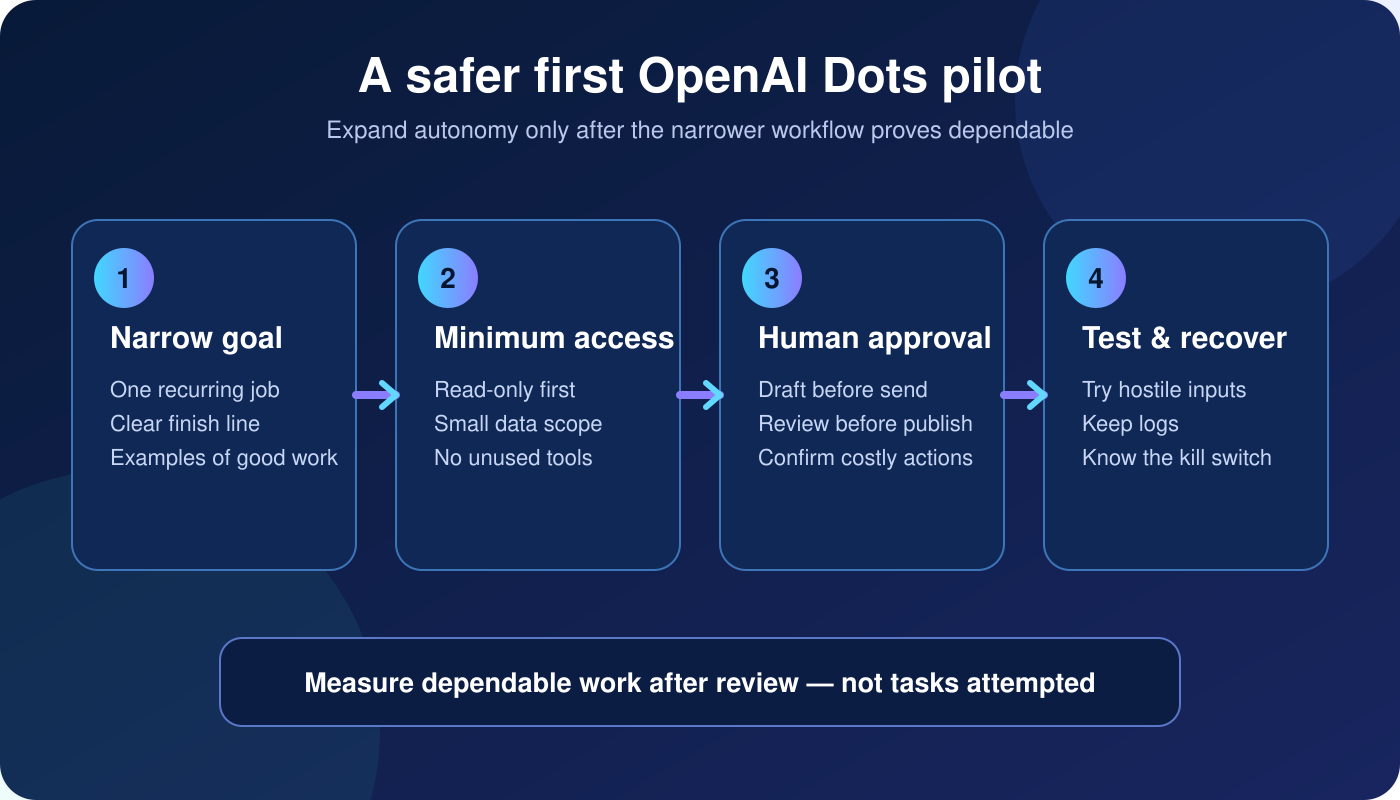
- Choose one recurring job. Avoid “help me run the business.” Use a finish line such as “prepare a cited competitor-change brief every Friday.”
- Define a good result. Provide one or two examples, required sources, length, format and the conditions that should trigger a question.
- Connect the minimum data. Begin with a small folder, one project or a read-only source—not the entire organisation.
- Keep actions reversible. Draft, suggest, label and queue before allowing send, publish, purchase, edit or delete.
- Run normal and hostile tests. Include missing data, conflicting instructions, a misleading webpage and a request outside scope.
- Measure the whole workflow. Count preparation, review, corrections, failures and maintenance—not only the agent’s run time.
- Expand one permission at a time. Add access only after the narrower version works reliably.
Do not measure success by the number of tasks the Dot attempted. Measure dependable work completed after review. The AI agent ROI calculator gives you a simple way to compare time, cost, quality and error risk.
Who should try OpenAI Dots now?
| Your situation | Recommendation |
|---|---|
| You already use several connected work apps and can supervise a pilot | Try one read-only or draft-first workflow |
| You need a flexible task that fixed automation handles badly | Test Dots against the existing process |
| You mainly need simple trigger-action automation | Keep the fixed workflow |
| You cannot explain permissions, approvals or recovery | Wait and design the controls first |
| You work with highly sensitive or regulated data | Require security, privacy and legal review before a pilot |
Independent coverage from Reuters also noted glitches in the live demonstration. That does not make the idea useless. It is a useful reminder that a launch demo is not your production test.
Important limitations and unresolved questions
Dots launched with an ambitious promise, but several practical questions will only become clear after broader real-world use.
- Rollout is limited. Plus, Go and Free users do not have a published access date. Enterprise access also depends on workspace enablement.
- “Included” does not mean unlimited. The first Dot is included with eligible Pro and Business Premium plans, but deeper work has an allowance. OpenAI says users will eventually be able to buy more Dots or scale their speed and monthly output; the long-term economics are not yet clear.
- Connected apps define usefulness. “More than 4,000 apps” is not the same as every action in every app. Check whether the exact system and permission you need are supported.
- Cross-channel context needs discipline. Carrying context between ChatGPT, Slack and Teams is convenient, but old or irrelevant context can also influence later work. Correct assumptions explicitly.
- Approvals can become routine. A reviewer who clicks approve without reading the proposed action is not a meaningful control.
- Agents still make mistakes. OpenAI says consequential work should be reviewed. The DevDay live demonstration also experienced failed voice updates, a useful reminder that launch capability and dependable operations are different things.
- This is not a compliance shortcut. Regulated or sensitive workflows still require your organisation’s security, privacy, retention, access and legal review.
For now, a Dot should earn autonomy through observed performance. Start with a draft, measure it, correct it and expand one permission at a time.
OpenAI Dots pricing and availability
OpenAI says Dots are rolling out to Pro, Business Premium and Enterprise customers in eligible markets, with broader availability planned. Rollout does not mean every account receives access on the same day.
Do not confuse API model prices with the price of running a Dot. OpenAI lists separate API rates for models such as GPT-6 Astra and GPT-6.1 Sol, but the Dots launch page does not give a simple standalone cost per Dot. Check the current plan and usage terms inside your account before budgeting a pilot.
For the latest product details, read OpenAI’s official Dots announcement. Treat any plan, region or limit in this article as a dated snapshot.
OpenAI Dots learning path: read these child guides next
This article is the overview. Use the focused guides below when you move from “What is a Dot?” to designing and evaluating a real workflow.
- Set up your first Dot: follow the step-by-step OpenAI Dots setup guide to choose a safe pilot, connect minimum access and test the first runs.
- Write precise permission rules: use the OpenAI Dots Custom Rules guide for allow, approval and block templates.
- Understand data and memory: read the OpenAI Dots privacy and security guide before connecting sensitive work.
- Choose the right architecture: AI agent vs chatbot vs automation explains when autonomy is justified and when a fixed workflow is safer.
- Design permissions and recovery: use the AI agent security checklist before connecting company data or write-capable tools.
- Calculate whether the pilot is useful: the AI agent ROI calculator counts review, corrections, failures and maintenance instead of measuring demo speed.
- Understand browser-level risk: AI browser agents: capabilities, risks and safe setup explains what changes when an agent can click, type and navigate.
- Build a visible alternative: the n8n AI agents complete guide shows how to put deterministic validation, approvals and logging around model decisions.
- See the draft-first pattern: the safe Gmail AI agent tutorial demonstrates why drafting is a better first permission than sending.
Recommended order: decide whether you need an agent, define the security boundary, run one measurable pilot, then compare a managed Dot with a visible n8n workflow. That sequence prevents the tool from choosing the problem.
Key takeaways
- OpenAI Dots are ongoing agents with their own cloud computer, not ordinary chat sessions.
- The best use cases have changing steps but a clear goal and reviewable output.
- Fixed automation remains better for predictable rules.
- Begin read-only or draft-first, with minimum permissions and visible approvals.
- Judge value after human review, corrections, failures and operating cost.
Frequently asked questions
Are OpenAI Dots available to everyone?
No. OpenAI announced a staged rollout for eligible Pro, Business Premium and Enterprise customers, with expansion later. Account, plan and market eligibility can affect access.
Can a Dot use my computer?
A Dot normally has its own cloud computer. OpenAI also says it can use your laptop when you grant permission. Review the requested access and do not allow broader control than the task requires.
Are OpenAI Dots safe?
They include product-level controls, but safety depends on the task, permissions, data, approvals and monitoring you configure. No general-purpose agent is risk-free. Use narrow access and require approval for consequential actions.
Will Dots replace Zapier, Make or n8n?
Not for every workflow. Deterministic automation is still the better choice when the steps and rules are known. Dots target work where the route changes and the system must interpret context. Many useful systems will combine an agent with fixed validation, approval and logging steps.
Final verdict
OpenAI Dots point toward a different relationship with AI: less prompting, more delegation. That could remove a surprising amount of coordination work. But delegation only becomes productivity when the output is dependable and the consequences are controlled.
My practical advice is simple. Do not begin by asking a Dot to run something important. Ask it to prepare something useful. Watch how it handles ambiguity, feedback and failure. Then decide whether it has earned the next permission.
What recurring task would you delegate first? Which action would you never allow without approval? And would you prefer an agent that works independently or a visible workflow you can inspect step by step?
About the author: Nishikant Tiwari is a computer engineer who writes practical, evidence-based guides on AI tools, automation and personal productivity. His focus is simple: test useful workflows, question inflated claims and help readers make better decisions with technology.