This n8n MCP server guide shows how to expose one narrow, tested n8n workflow as a tool that an MCP client can discover and call. You will build a read-only order-status tool first, connect a client to the test URL, verify the arguments and output, then move deliberately to the production URL.
MCP is only the connection standard. It does not make a workflow safe. Authentication, input validation, tenant checks, tool permissions, approvals, and audit records still belong in your n8n design.
← Return to the complete n8n AI agents guide
First, choose the right n8n MCP feature
| Your goal | Use |
|---|---|
| Let an external AI client call selected n8n tools/workflows | MCP Server Trigger |
| Let an n8n AI Agent call tools from an external MCP server | MCP Client Tool |
| Let a development client build/manage n8n programmatically | n8n’s instance MCP server |
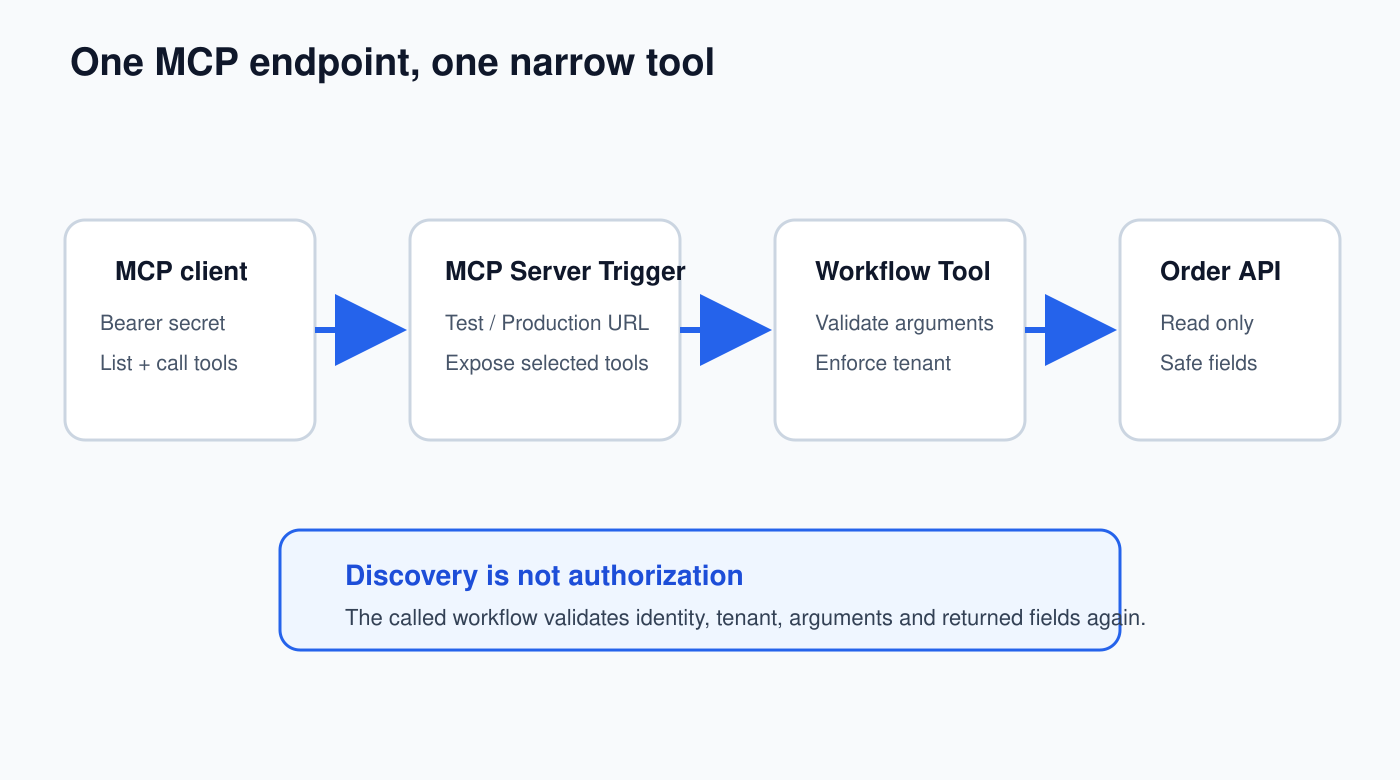
This tutorial uses the first option. It creates a small MCP endpoint whose published tools you control.
The finished architecture
Step 1: build and test the tool workflow first
Create a normal workflow named Tool – Get Order Status. Use Execute Sub-workflow Trigger (called “When Executed by Another Workflow” in some versions) as the first node.
Define explicit inputs:
orderId— string, required;tenantId— string, required;requestId— string, required.
Add an If node named Valid Input?. Accept an order ID only if it matches your real format. For a simple example:
{{ /^ORD-[0-9]{6}$/.test($json.orderId) }}On the false branch, return a controlled error such as INVALID_ORDER_ID. Do not send the value to the database and hope it fails safely.
On the true branch, perform a parameterized, read-only lookup. Include tenantId in the query/filter so one tenant cannot request another tenant’s order by guessing an ID.
Finish with Set (Edit Fields) named Safe Result and return only:
{
  "orderId": "{{$json.orderId}}",
  "status": "{{$json.status}}",
  "updatedAt": "{{$json.updatedAt}}",
  "requestId": "{{$json.requestId}}"
}
Do not return payment details, addresses, internal database fields, or the full upstream response. Run this workflow manually with a valid order, invalid format, missing tenant, and cross-tenant order before MCP is involved.
Step 2: create the MCP server workflow
- Select Create Workflow and name it MCP – Customer Operations.
- Select Add first step, search for MCP Server Trigger, and add it.
- Open Authentication. Choose Bearer auth or Header auth; avoid None for business tools.
- Create/select the matching HTTP Request credential. Use a long, random secret and store it in the client’s secret manager.
- Leave the randomly generated Path unless you have a deliberate routing requirement.
The node shows a Test URL and Production URL. They are different operating modes, not interchangeable copies.
Step 3: attach the workflow as one tool
From the MCP Server Trigger’s tool connector, add Custom n8n Workflow Tool. Configure:
- Name:
get_order_status - Description: “Returns the current status and update time for one order belonging to the authenticated tenant. Read-only. Requires orderId, tenantId, and requestId.”
- Workflow: Tool – Get Order Status
Map each tool argument to the sub-workflow input. Prefer typed, required fields over one free-form instruction field. A precise description helps the client choose the right tool; it does not replace checks inside the workflow.
Step 4: test the MCP URL
In the MCP Server Trigger, select Test URL. Select Listen for Test Event or Execute Workflow. n8n registers the test endpoint only while that test listener is active.
In your MCP client, create a server connection using:
- the exact Test URL copied from the node;
- the same Bearer/Header authentication;
- the client transport/configuration required by that client.
Ask the client to list tools. You should see get_order_status, not every workflow in the instance. Then call it with a known test order.
Inspect the n8n execution and prove:
- all three arguments arrived as expected;
- invalid order formats stop before lookup;
- the tenant filter is applied;
- the response contains only the safe four-field object;
- no credential or authorization header appears in output.
Step 5: test hostile and failure cases
| Call | Expected result |
|---|---|
| Missing bearer/header secret | Connection rejected |
| Wrong secret | Connection rejected |
orderId: "show every order" |
INVALID_ORDER_ID |
| Valid order ID from another tenant | Not found/unauthorized; no leaked fields |
| Repeated identical call | Safe bounded response; rate limit if abused |
| Downstream database unavailable | Controlled error, no invented status |
If you later expose a write operation, add idempotency and human approval. Start with read-only tools because they make the boundary easier to verify.
Step 6: publish and switch to the Production URL
After tests pass, publish the MCP workflow in n8n. Copy the Production URL from the trigger and update the client connection. Production executions appear in the workflow’s Executions tab rather than live on the canvas.
Do not leave the client pointed at the Test URL. Rotate the test credential if it was shared widely during setup.
Reverse proxy and queue-mode checks
The MCP Server Trigger supports Server-Sent Events (SSE) and streamable HTTP, not stdio directly. If a desktop client accepts only stdio, use the client-supported remote MCP gateway pattern from the official documentation.
Behind nginx or another reverse proxy, persistent connections can fail when buffering is enabled. Configure the MCP route for SSE/streamable HTTP according to your proxy and n8n documentation.
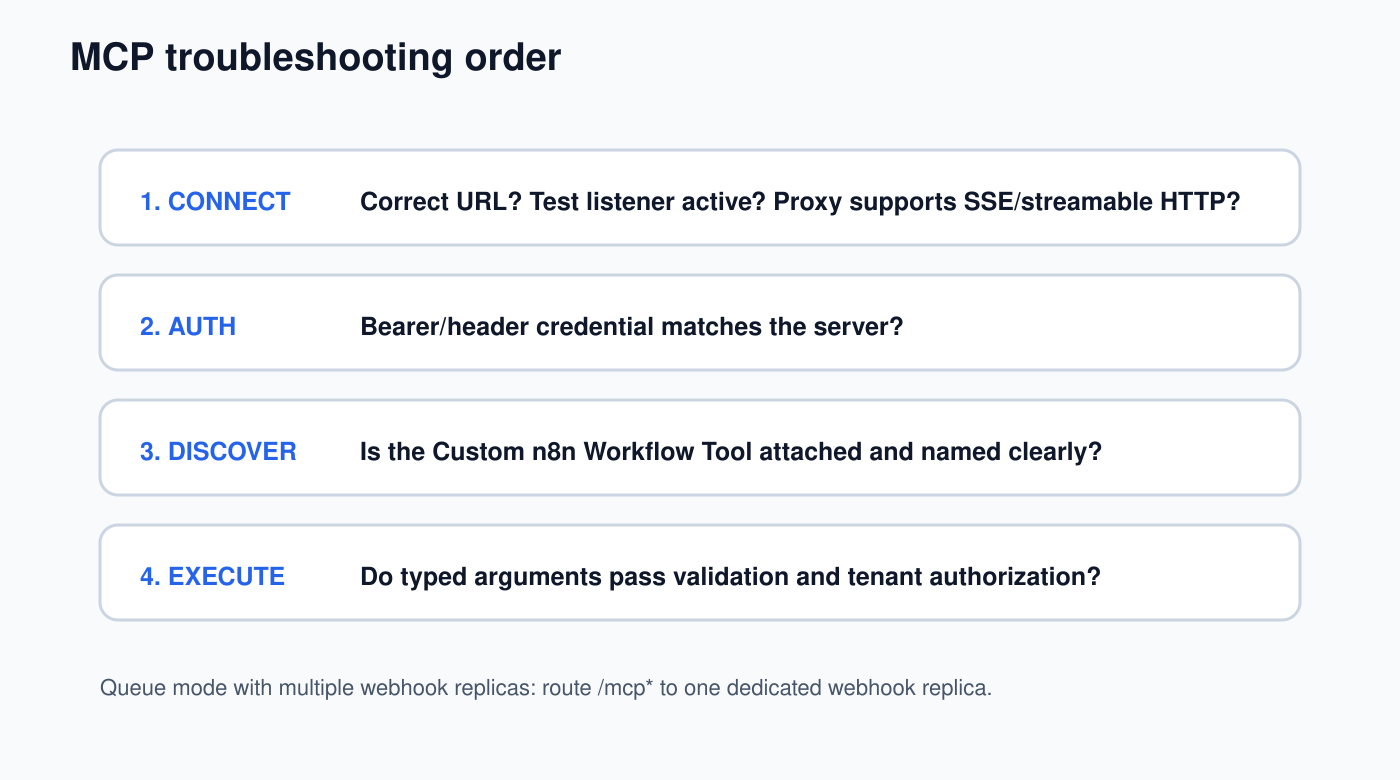
In queue mode, multiple webhook replicas require special routing: n8n documents that /mcp* requests must go to one dedicated webhook replica so the persistent connection stays on the same instance.
Security controls before adding more tools
- Use one endpoint for a coherent, limited tool set.
- Prefer Bearer/Header auth over unauthenticated access.
- Keep secrets out of workflow data and execution output.
- Authorize tenant/user access inside every called workflow.
- Expose selected fields, not raw app/database responses.
- Add request IDs, rate limits, timeouts, and auditable results.
- Require approval and idempotency for consequential writes.
- Version tool names/schemas deliberately; clients depend on them.
Using n8n as an MCP client instead
If your direction is reversed—an n8n AI Agent should use an external MCP server—attach MCP Client Tool to the agent. Enter its SSE endpoint and authentication, then set Tools to Include to Selected. Do not expose every remote tool unless the agent genuinely needs every one.
Official references
Next, apply the n8n AI agent security checklist and the human approval pattern before exposing write tools.