This n8n Google Sheets AI workflow scores new leads without turning the spreadsheet into a fragile database. It reads only unprocessed rows, validates required fields, calculates a transparent score, optionally normalizes messy job titles with AI, and updates the exact original row.
The important part is not the score. It is the discipline around stable IDs, data types, duplicate runs, and row updates. Those are the details most quick tutorials skip—and the details that prevent one lead from overwriting another.
← Return to the practical n8n workflow tutorials
What you will build
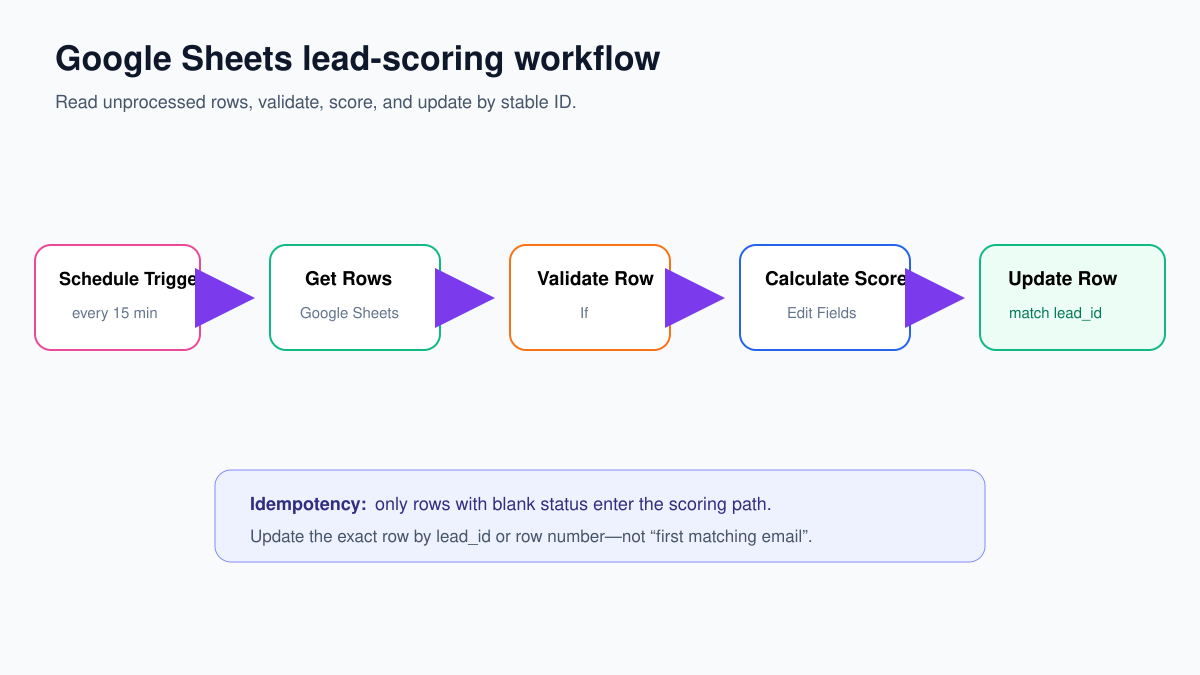
The core workflow uses six nodes:
- Schedule Trigger — starts every 15 minutes.
- Google Sheets — Get Rows — reads the lead table.
- If — Unprocessed? — allows only blank-status rows to continue.
- If — Required Fields? — separates valid rows from review rows.
- Edit Fields — Calculate Score — adds a deterministic score and reason.
- Google Sheets — Update Row — writes to the exact row using
lead_idor row number.
Step 1: prepare the spreadsheet
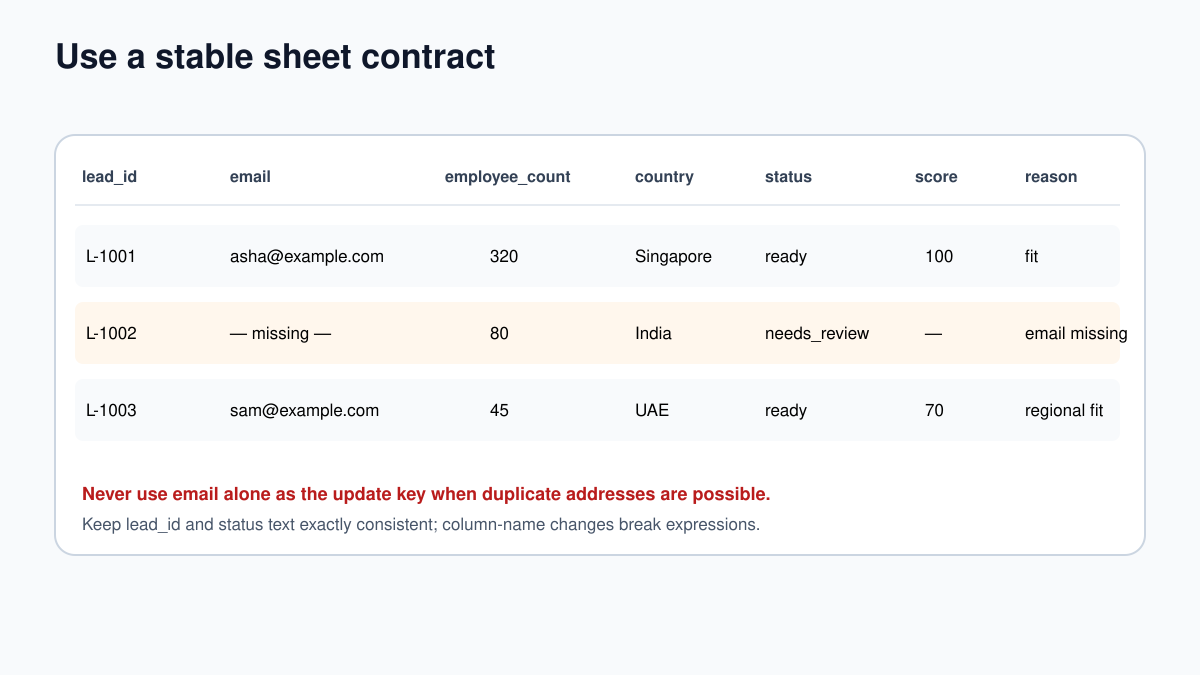
Create a sheet named Leads with these exact headers in row 1:
| Column | Example | Purpose |
|---|---|---|
lead_id |
L-1001 | Stable unique update key |
email |
asha@example.com | Required contact value |
company |
Northstar Labs | Lead context |
employee_count |
320 | Numeric scoring input |
country |
Singapore | Regional scoring input |
job_title |
Head of Ops | Optional AI-normalization input |
status |
blank | Idempotency gate |
score |
blank | Workflow output |
reason |
blank | Human-readable output |
processed_at |
blank | Audit timestamp |
Give every row a unique lead_id before n8n processes it. Email is not a reliable key: two rows can share an address, and a person can change addresses. Protect the header row and keep header spelling stable.
Step 2: connect Google Sheets safely
Create or select the Google Sheets credential in n8n. Use a dedicated automation account where possible and share only the required spreadsheet with that account. A lead-scoring workflow does not need access to every file in your Drive.
Create a workflow named Score new Google Sheets leads. Add Schedule Trigger and set it to every 15 minutes while testing. You can reduce the interval later if the use case really requires it.
Add Google Sheets and rename it Get Lead Rows:
- Credential: your restricted Google Sheets credential
- Resource: Sheet Within Document
- Operation: Get Row(s)
- Document: select or paste the target spreadsheet
- Sheet: Leads
Execute the node. Confirm that each sheet row is a separate n8n item and that the output includes either a row number or your lead_id. Inspect employee_count: depending on the sheet and node settings, it may arrive as a Number or String. Do not assume.
Step 3: stop already-processed rows
Add an If node named Unprocessed?. Configure a String condition:
- Value 1:
{{ $json.status }} - Operator: is empty
The true output continues. The false output ends quietly. This makes the workflow safe to run again because rows marked ready or needs_review do not re-enter scoring.
Status alone is useful but not perfect locking. If overlapping executions are possible, prevent workflow concurrency or reserve the row before expensive AI calls. Otherwise two executions may both read the same blank status.
Step 4: validate required fields and types
Add a second If node named Required Fields?. The valid route requires:
lead_idis not empty;emailis not empty;employee_countcan be converted to a number;countryis not empty.
On the false route, add Edit Fields with:
status = needs_review
reason = Missing or invalid required field
processed_at = {{ $now }}
Connect that node to an Update Row node so invalid records are visible in the sheet rather than retried forever.
Step 5: calculate a transparent lead score
Add Edit Fields and rename it Calculate Score. Turn on Include Other Input Fields. Add a Number field named score with this expression:
{{
  (Number($json.employee_count) >= 200 ? 40 : 10) +
  (["Singapore", "India", "UAE"].includes($json.country) ? 30 : 10) +
  ($json.email ? 30 : 0)
}}
Add these String fields:
status = ready
reason = {{ Number($json.employee_count) >= 200 ? 'Large company; ' : 'Small company; ' }}{{ ["Singapore", "India", "UAE"].includes($json.country) ? 'target region' : 'other region' }}
processed_at = {{ $now }}
For the sample row with 320 employees, Singapore, and an email, the expected score is 100. A row with 45 employees, UAE, and an email scores 70. Calculate those results yourself before running the node.
This score is intentionally simple. Change the weights only when you have evidence that a field predicts value. A complicated formula does not automatically become a good model.
Optional: normalize job titles with AI
AI is useful when the raw title varies—Head Ops, Operations Lead, and VP, Business Operations—but you want one controlled category. It should not replace the deterministic score.
Between validation and Calculate Score, add a Basic LLM Chain with a Structured Output Parser. Prompt:
Classify this job title into exactly one allowed seniority:
executive, director, manager, individual_contributor, unknown.

Job title: {{ $json.job_title }}

If the title is ambiguous or empty, return unknown.
Require this schema:
{
  "type": "object",
  "properties": {
    "seniority": {
      "type": "string",
      "enum": ["executive", "director", "manager", "individual_contributor", "unknown"]
    },
    "confidence": {"type": "number", "minimum": 0, "maximum": 1}
  },
  "required": ["seniority", "confidence"]
}
Map the result back onto the original item and send confidence below 0.75 to needs_review. Do not let free-form model output become a sheet column or scoring rule.
Step 6: update the exact original row
Add Google Sheets and rename it Update Scored Lead:
- Resource: Sheet Within Document
- Operation: Update Row
- Document/Sheet: the same spreadsheet and Leads sheet
- Matching column:
lead_id - Matching value:
{{ $json.lead_id }}
Map status, score, reason, processed_at, and optional seniority. Preserve the original columns.
If your node version updates by row number, carry the row number from Get Lead Rows through every node. Do not update the “first row where email matches.” That is how duplicate email addresses corrupt the wrong record.
Step 7: create one run summary
Do not send one Slack message for every lead. Aggregate the run and report:
- rows read;
- rows skipped as already processed;
- rows scored;
- rows marked for review;
- rows that failed to update.
For production, use an Error Trigger workflow so authentication errors, quota limits, and update failures produce an actionable alert with workflow ID, execution ID, and lead_id.
Test matrix
| Input | Expected result |
|---|---|
| Complete large-company Singapore row | Score 100; status ready |
| Complete small-company UAE row | Score 70; status ready |
| Missing email | needs_review; no AI call |
| employee_count contains “three hundred” | needs_review unless you explicitly support conversion |
| status already ready | Skipped; no update |
| Duplicate email with different lead_id | Only the matching lead_id row updates |
| Workflow run twice | Second run skips completed rows |
| Google credential revoked | Error workflow alerts; no partial silent success |
Common problems
| Problem | Fix |
|---|---|
| Column is undefined | Check the exact header text and actual Get Rows output |
| Score comparison is wrong | Convert employee_count with Number() and validate it |
| Wrong row updated | Match a unique lead_id or preserved row number |
| Same rows keep processing | Verify status is written and the Unprocessed? condition uses the right field |
| Formula disappears | Avoid mapping empty values over formula columns; update only intended fields |
| Quota or 429 errors | Reduce polling, batch work, and add bounded backoff |
A spreadsheet is convenient for human review, but it is not a high-concurrency database. When many workflows or users update the same data, move the state and locking into a real database and keep Sheets as a reporting or review surface.